The project notebook
How to build a restaurant furniture budget one room at a time
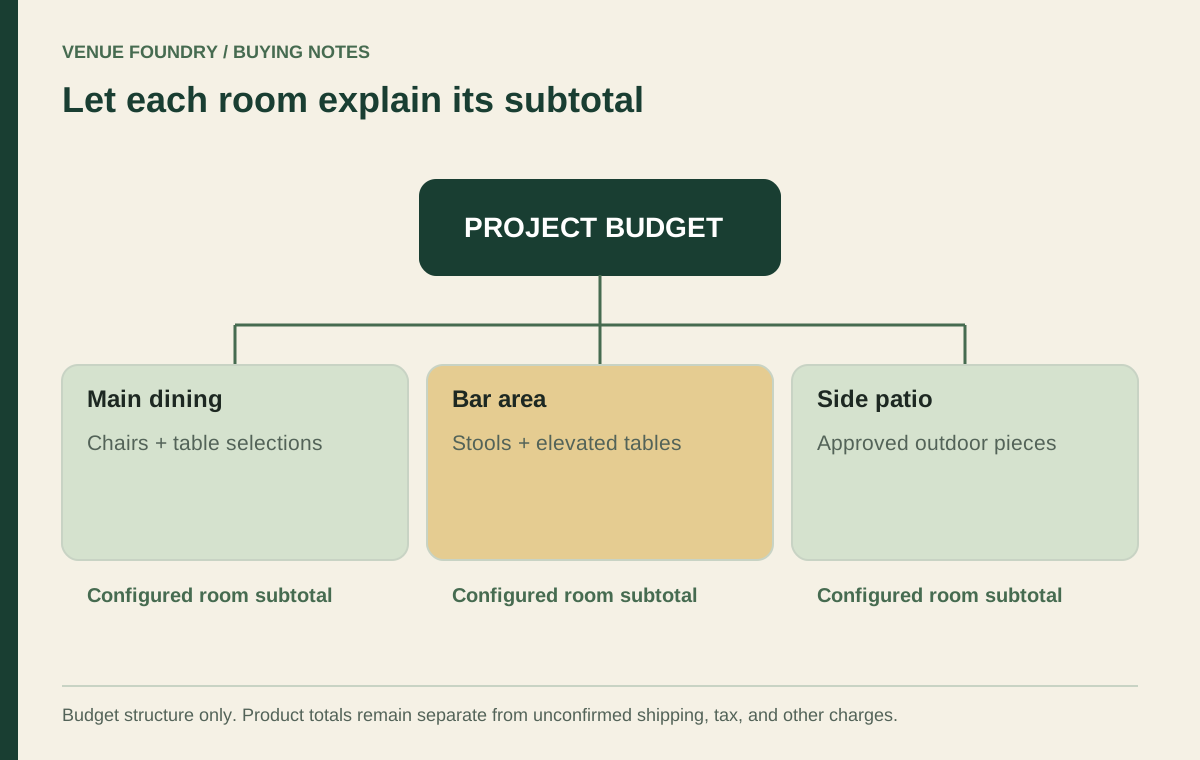
A restaurant furniture budget is easier to discuss when each number belongs to a room. Instead of starting with one total and trying to make the selection fit, begin with the areas you need to furnish. The dining room, bar, and patio each ask different questions of the furniture you choose.
You can keep the process simple. A short room schedule, clear quantities, and a record of the actual product configurations give you a useful first draft. As the design changes, those details show where the money moved and which decisions still need attention.
Open diagram at full size (new tab) ↗
Give every area a working name
Start with the spaces on your current plan. Names such as Main dining, Window seating, and Covered patio are more useful than Room one when someone else needs to review the list. Keep the names consistent in the layout, furniture schedule, and project notes.
Assign each selection to its room in the budget planner. A chair used in two areas can appear on separate lines with the quantity for each area. That makes a change easier to trace. If the patio shrinks, you can adjust its furniture without disturbing the dining room count.
Room groups are a way to organize costs. They do not establish how many seats the building can accommodate. Use a measured layout and the appropriate professional review to settle circulation, access, and permitted capacity before treating a furniture count as final.
Count the selling unit before comparing prices
A displayed price only becomes meaningful when you know what it buys. Check whether a listing covers one chair, a furniture set, a table top, or a complete table. Similar photographs can show products with different included components.
For restaurant chairs, enter the number of the listed units your room needs. For table tops, check whether a base is included. If it is sold separately, allow for the appropriate table base as another line. Do not assume that two components fit because their finishes look alike.
Keep a brief note when a listing needs clarification. Questions about included hardware, assembly, or a set's contents should be resolved before comparing its total with another product. Otherwise, the cheaper-looking selection may simply be missing something your room needs.
Price the configuration you intend to use
Starting prices are helpful for browsing, but the selected options are what belong in the working budget. Choose the required frame, seat, surface, or size options on the product page. Where a price check is required, complete it before saving the selection.
Compare like with like. A bar stool with one seat choice should not be compared with a different seat configuration as though only the model changed. Record the finishes beside the price so you can explain the difference later. The materials guide describes how selected references relate to representative product photographs.
You do not need to settle every choice at once. Save a reasonable working selection, name the unresolved decision in its notes, and return to it. Notes are useful context, but they do not replace a required option or change the price calculation.
Keep furniture separate from the allowance
The configured furniture subtotal answers one question: what do these selected units add up to? The allowance answers another: what amount have you set aside for costs beyond that subtotal? Keeping the two separate makes the plan easier to revise.
Enter your own allowance for planning, then confirm the actual costs through the order discussion. Shipping and tax are not calculated from that allowance. Receiving arrangements, assembly, or other services may also need a separate conversation. Our delivery planning page identifies the details worth gathering before you ask for confirmation.
Avoid hiding an uncertain cost inside an item quantity or price note. It becomes difficult to see whether the furniture changed or the estimate changed. A visible allowance keeps the uncertainty where it belongs and lets a colleague challenge the assumption without rebuilding the whole selection.
Repeat a room only after reviewing the difference
Duplicating a saved room can save work when another area uses the same furniture. The copy retains the chosen configurations, quantities, and saved prices. Before confirming, review the extra units and the resulting furniture total shown in the copy panel.
Give the new room a name that explains its purpose. Then inspect the quantities. A second room may use the same booth seating or chair model while needing a different arrangement. The copied group is independent, so adjust it for the actual layout rather than leaving the original count untouched by habit.
The project target and allowance remain project-wide. Copying a room adds furniture to the plan; it does not create another delivery estimate or double the target. Save the edited copy before downloading a sheet, and use the available undo action if the duplication was a mistake.
Make trade-offs visible at room level
When the total is above target, a room subtotal is a useful starting point for discussion. It shows where a quantity change or a different configuration would have an effect. It does not tell you which decision is right for the restaurant.
Review the project priorities with the team. Perhaps the entrance seating needs to remain as selected while an outdoor furniture phase can be reconsidered. Perhaps the same chair in a different offered configuration gives you a more suitable comparison. Keep the reason in the project notes so a later reviewer understands the choice.
Do not use a budget adjustment to skip compatibility or layout checks. A lower furniture total is only useful when the revised selection still serves the room. The room planning notes help separate the furniture schedule from the wider layout decisions.
Test a change before applying it to the whole room
Consider a dining area with one configured chair repeated around several tables. Before changing every chair, compare the difference for one room at the intended quantity. A finish or seat choice that looks minor at unit level can change the furniture subtotal enough to affect another part of the plan.
Create a separate version of the project when you want to compare alternatives. Keep the room names consistent so the difference is easy to read. Use the materials notes to identify the exact selected options, and check table components separately if the seating change also affects the pairing.
After comparing the versions, retain the one that describes the intended purchase. Save the revised quantities and download a fresh sheet. An older PDF is still a record of its earlier prices and choices; it should not silently become the final order reference.
The useful question is not simply whether one piece costs less. It is whether the complete selected room still meets the layout, material and budget decisions you have made.
Leave a clear record for the next decision
Save the project when you reach a useful stopping point and download its branded sheet. The file records the saved rooms, selected finishes, quantities, and prices. It is a reference for that version, so download another copy after a later revision instead of assuming the earlier file has changed.
When the selection is ready, follow the ordering steps to review current product information and bring it into the basket. A saved price is a snapshot, and availability or options can change. The final review connects your working budget to the request you actually send.
Leave open questions visible. A clear furniture budget can include unresolved delivery details or a finish awaiting confirmation, provided everyone can see them. That is a stronger handoff than a polished total whose assumptions have disappeared.